Turn your own story into English writing, listening and speaking practice
Follow “A little pause on a rainy day,” a story about taking shelter in a café after work. Choose a writing mode, express your ideas and review the text, then use the same story for recall, listening and reading-aloud practice.
Choose how you want to write
| Mode | When to choose it | Support provided |
|---|---|---|
| Guided mode (引导模式) | You would like help deciding what to write | Breaks writing into steps, with a focus for each step and suggested vocabulary and sentences. |
| Free mode (自由模式) | You already have a plan for your story | No step-by-step outline; vocabulary and sentence recommendations remain available to insert into your text. |
STEP 01
Choose a photo, title and writing mode
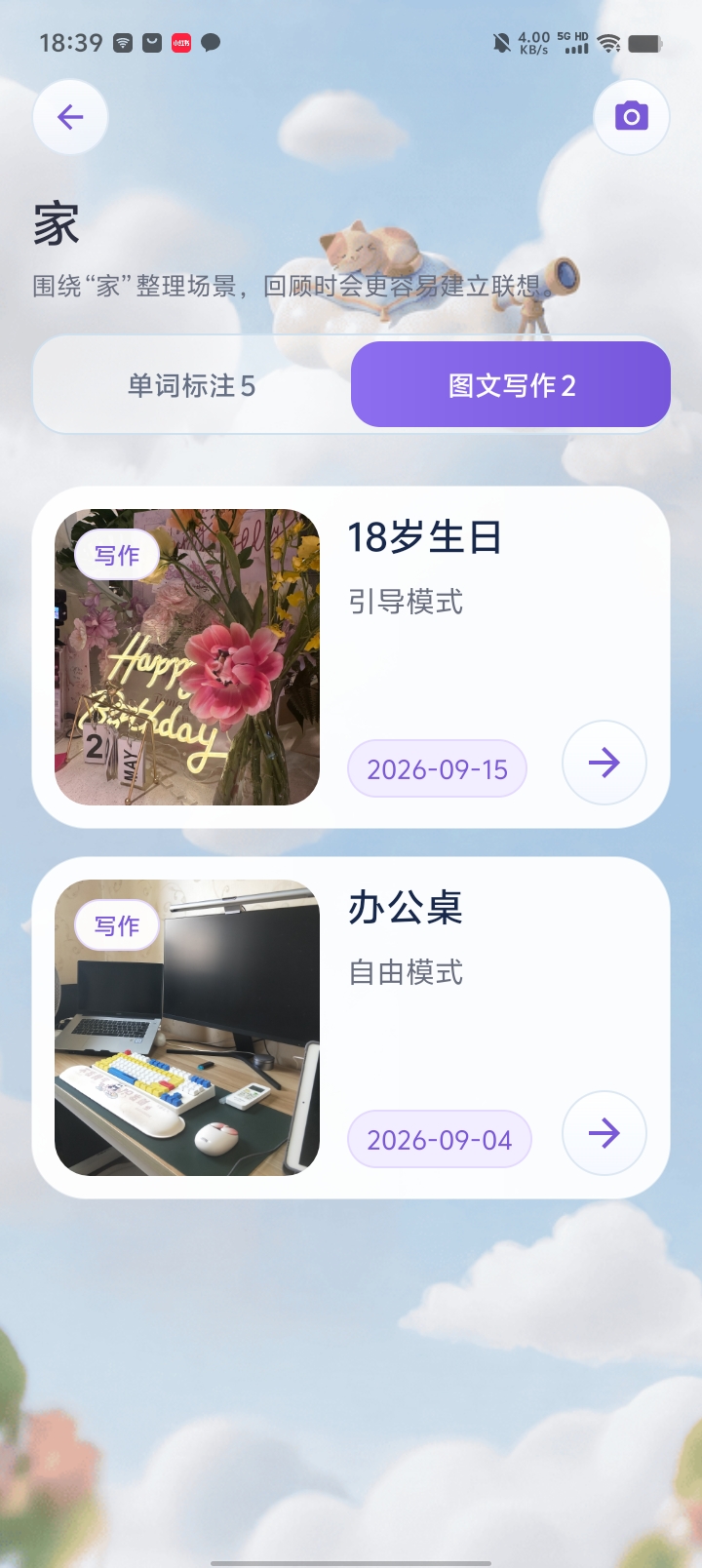
Open a folder in your scene library (景库), select Photo writing (图文写作) and tap the top-right camera button. Take a photo or choose one from your album.
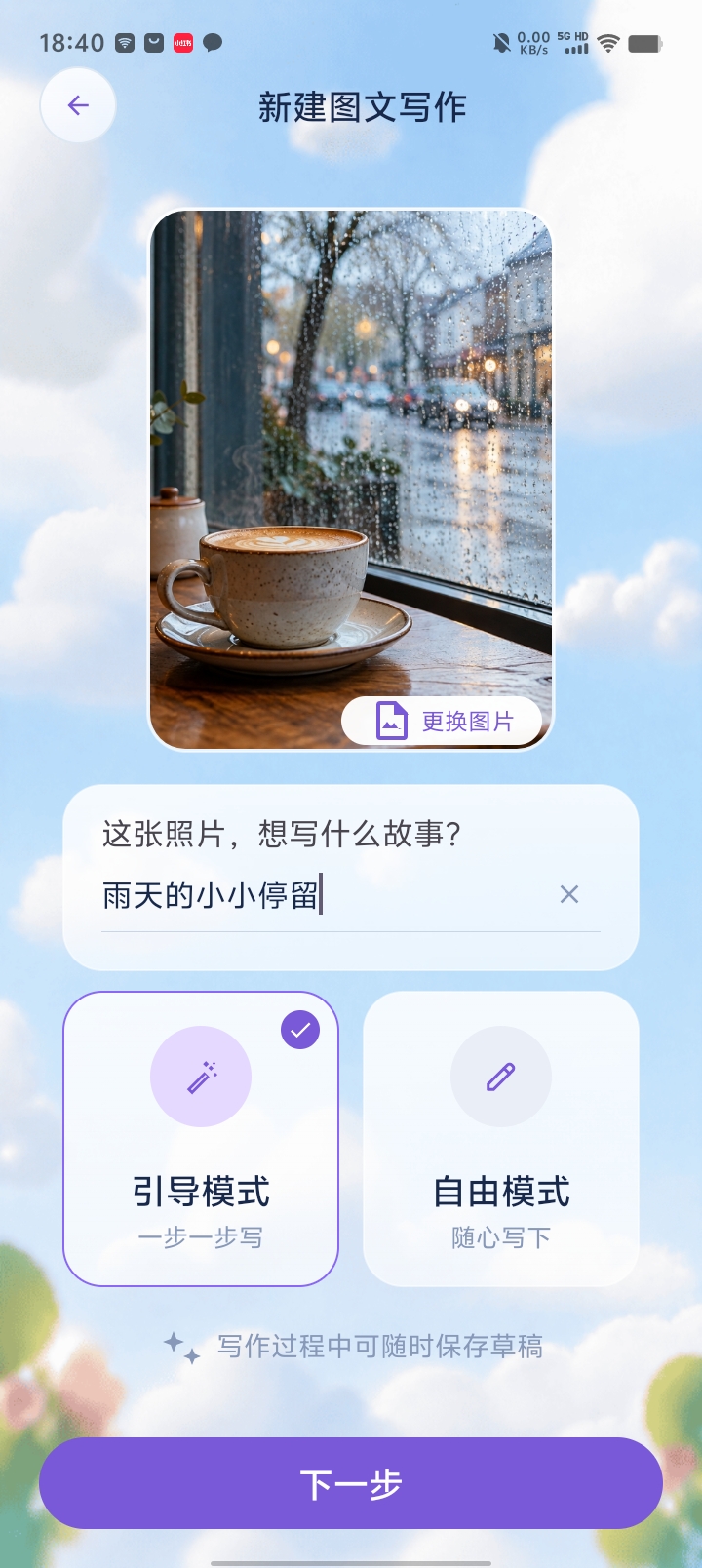
Give the story a title based on what you want to express. This example uses 雨天的小小停留, “A little pause on a rainy day.” Select Guided mode (引导模式) or Free mode (自由模式), then tap Next (下一步). You can save a draft while writing.
STEP 02
Use guided steps when you need ideas
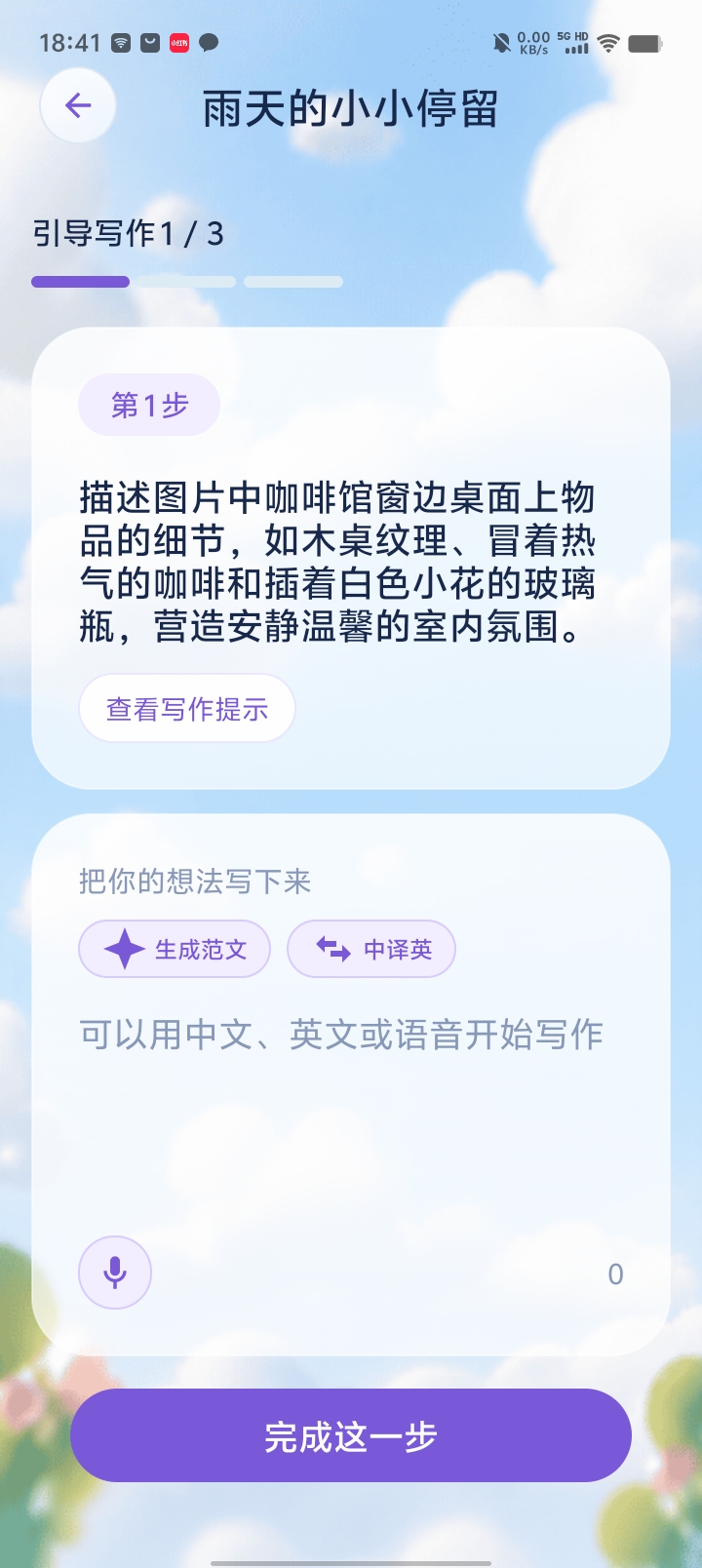
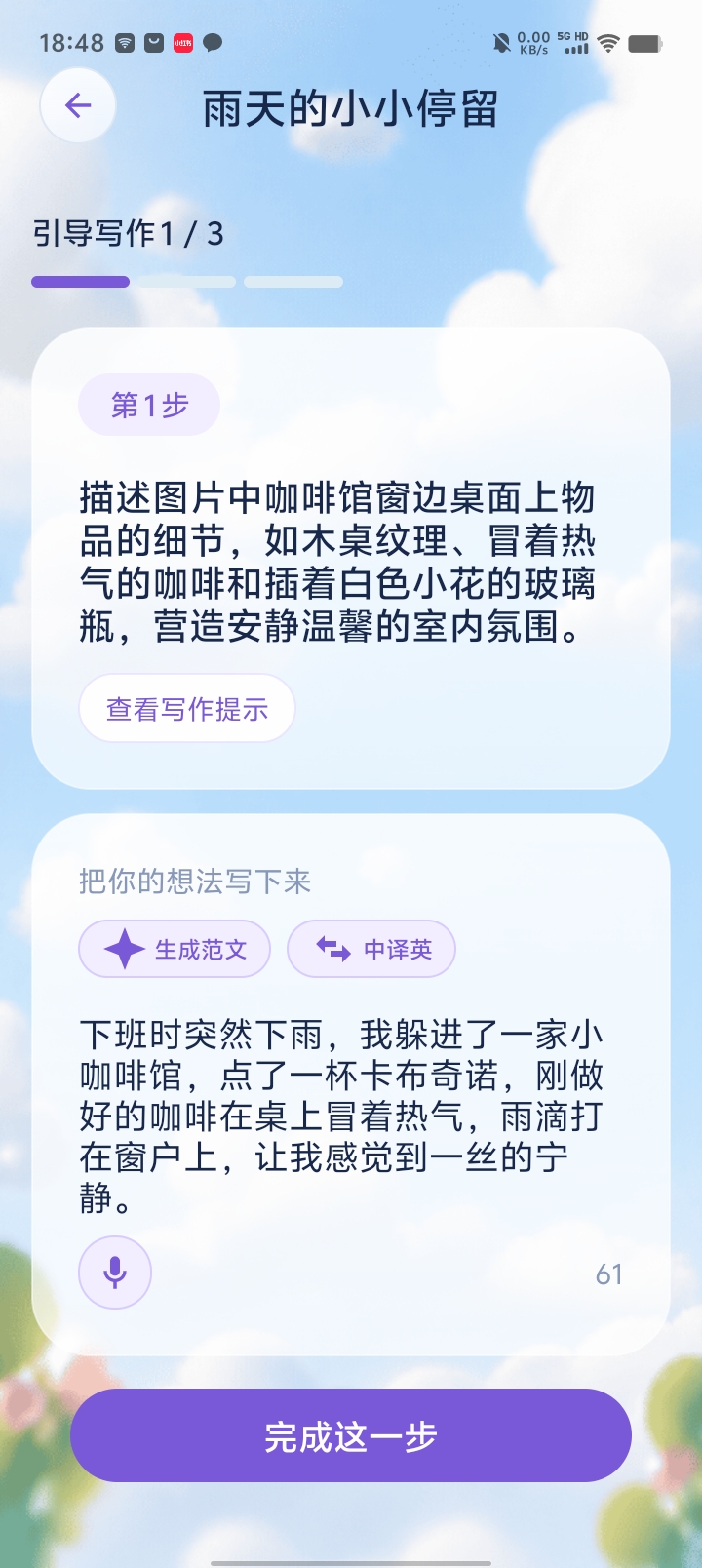
Guided mode splits writing into several steps with a different focus. This example shows 1 / 3: describe the table and coffee first, then the view outside and your feelings. The steps depend on the writing session.
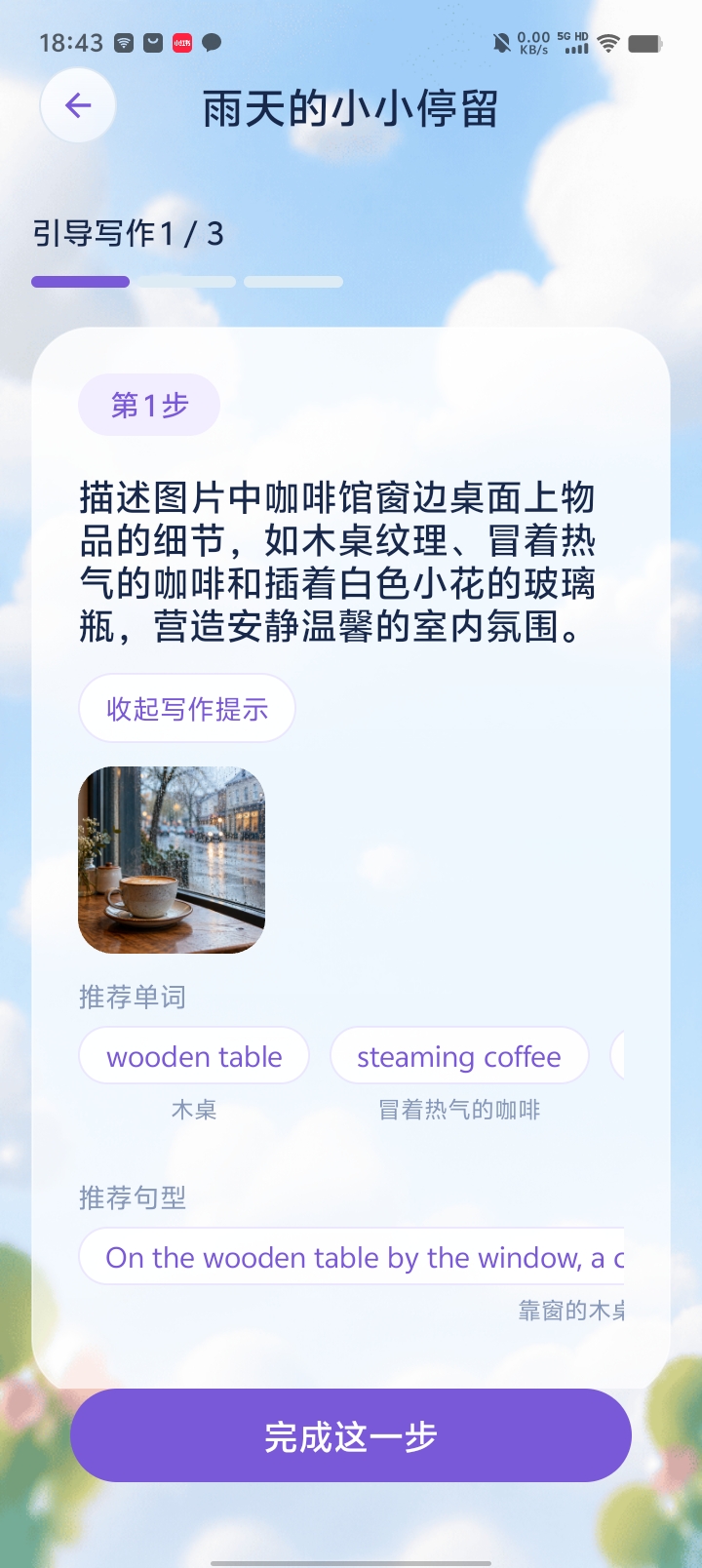
Tap View writing tips (查看写作提示) to see recommended vocabulary and sentences. Tap a suggestion to insert it into the input field. Examples shown include wooden table and steaming coffee. Tap Complete this step (完成这一步) when ready.
You can also tap Generate model text (生成范文) for an English sample related to the photo. Read it and keep content that fits the experience you want to describe.
STEP 03
Express your idea in Chinese, then translate
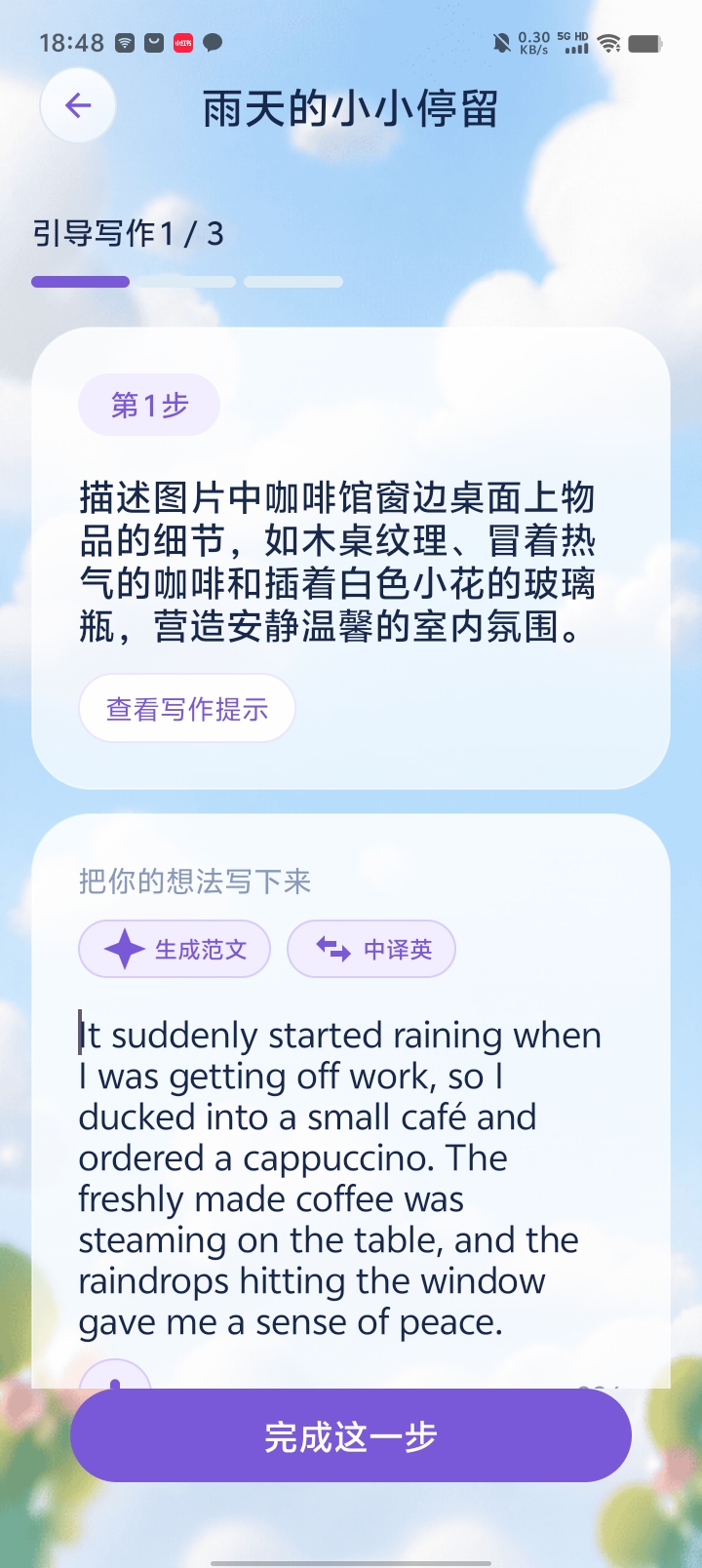
If you know what to say but cannot find the English, use the microphone at the bottom left of the input area to enter your idea in Chinese, or type it. Tap Chinese to English (中译英) to convert the text.
Here, a Chinese account of taking shelter in a café becomes It suddenly started raining when I was getting off work…. Check that the translation preserves your meaning, edit as needed and continue the guided steps.
STEP 04
Review AI suggestions and confirm the story
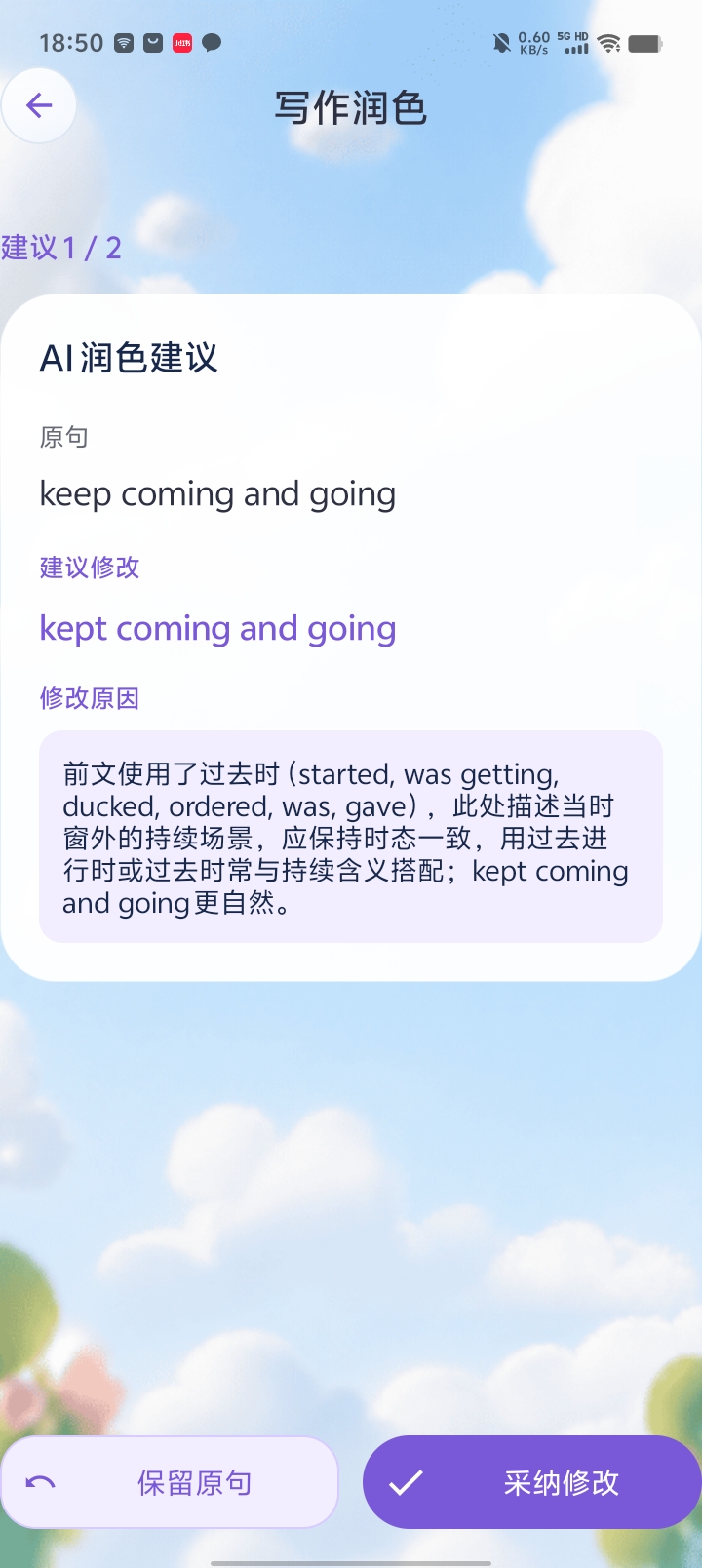
After the final guided step, AI polishing starts automatically. Each suggestion shows the original text, a proposed change and its reason. Choose Keep original (保留原句) or Accept change (采纳修改).
The screenshot suggests changing keep coming and going to kept coming and going to match the past-time narrative. Read the explanation in context before deciding.
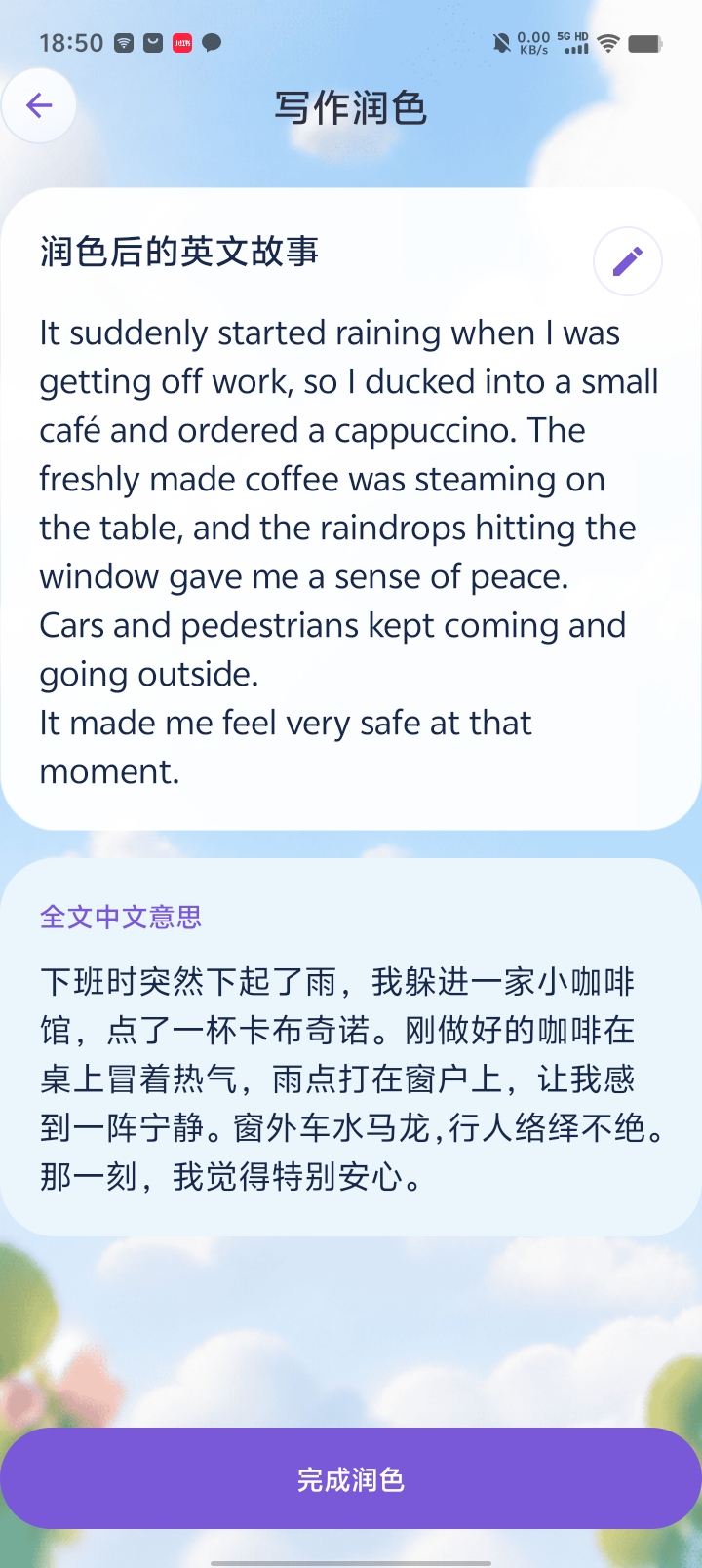
After handling the suggestions, review the full English story and Chinese meaning. You can still edit the article. Tap Finish polishing (完成润色) to complete the guided writing creation.
STEP 05
Use free mode when you already know what to write
Select Free mode (自由模式) when creating the story if you want to organize it yourself. There are no guided steps or step-by-step writing ideas.
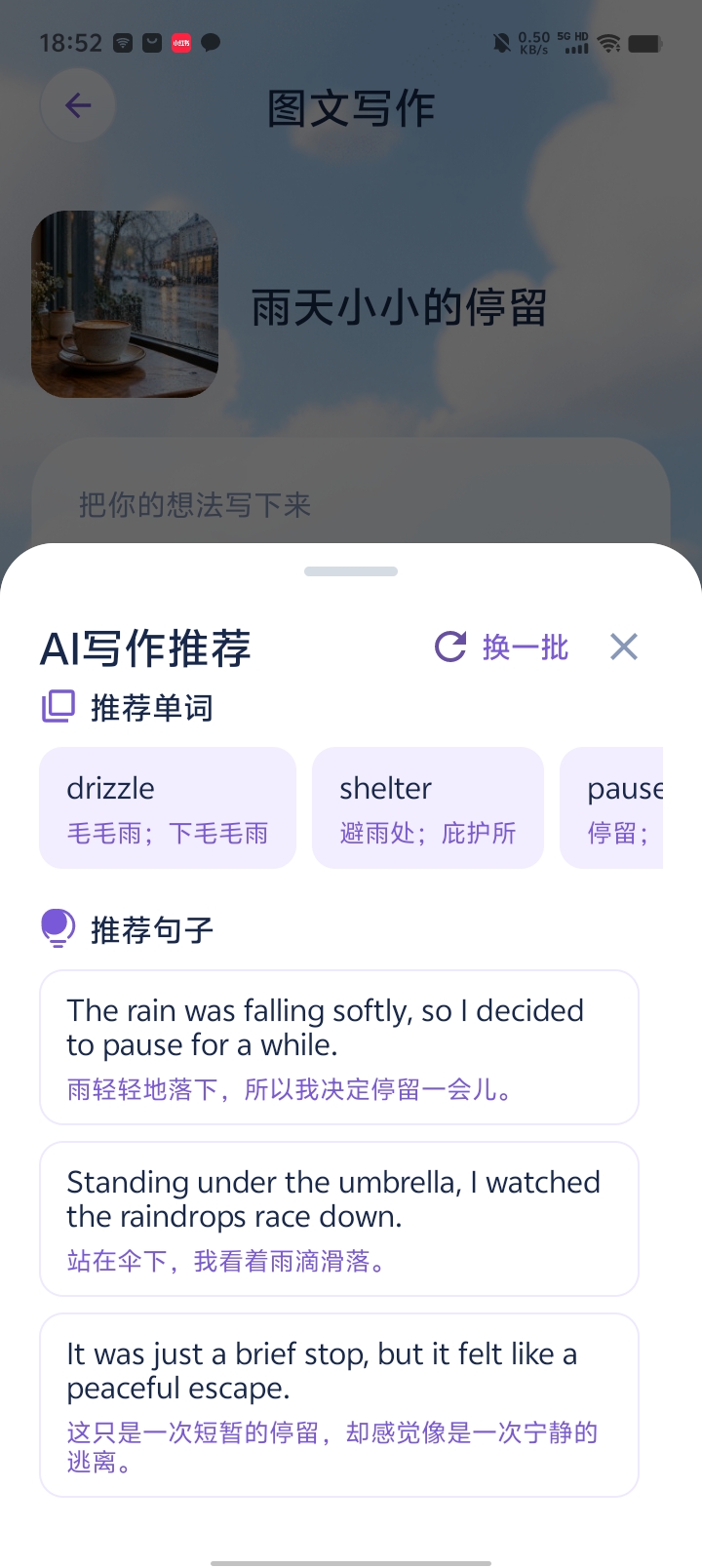
AI writing recommendations are still available. Tap words such as drizzle or shelter, or a recommended sentence, to insert them into your text. Tap Another batch (换一批) for more suggestions. The automatic polishing flow described above applies to the guided mode example.
STEP 06
Choose a training activity in the story details
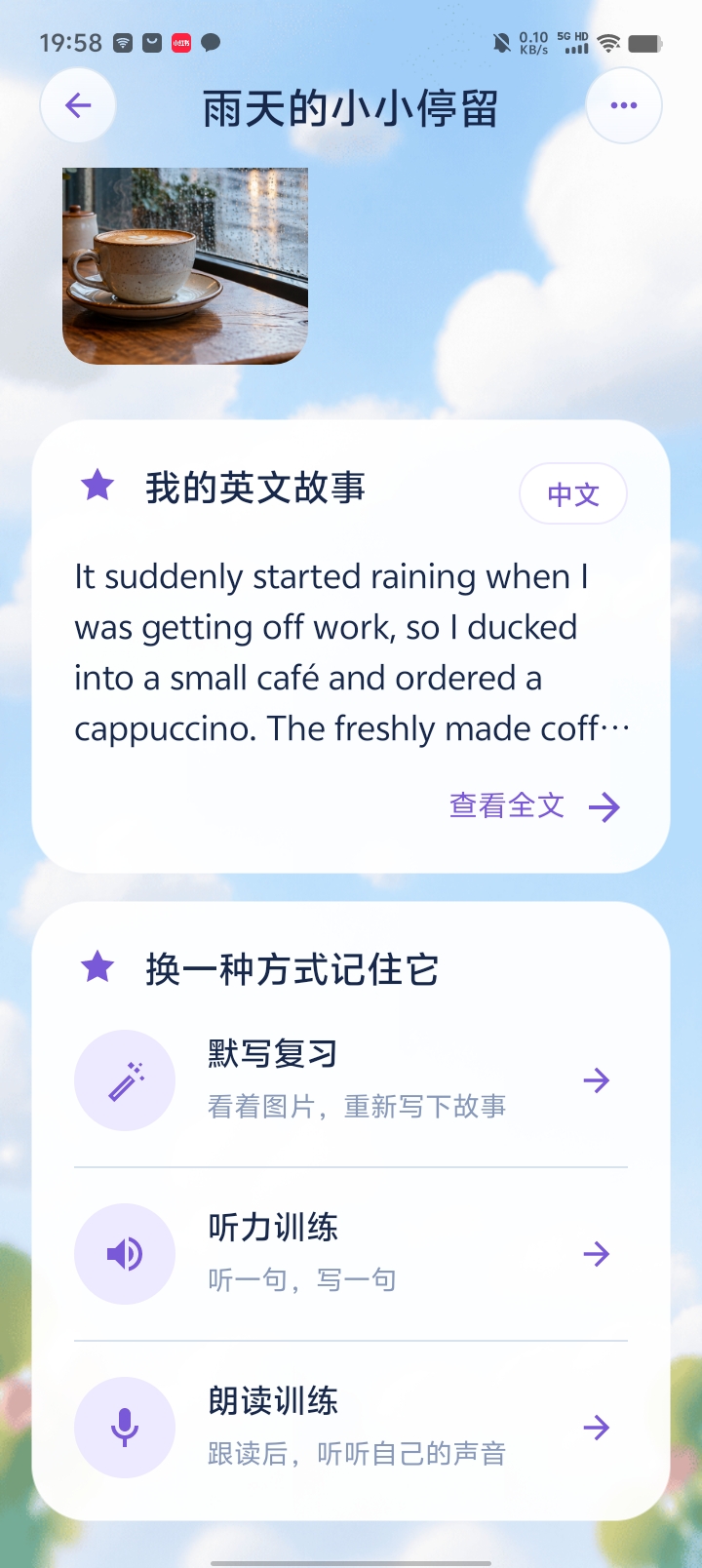
After creation, open the writing details to read the story, view the full text or switch to Chinese. Under 换一种方式记住它, choose recall writing (默写复习), listening (听力训练) or reading aloud (朗读训练).
All three activities use the same story you just prepared. Recall writing practices remembering expressions; listening connects sound with writing; reading aloud lets you follow the reference audio and listen back to yourself.
STEP 07
Recall the story sentence by sentence, with help when needed
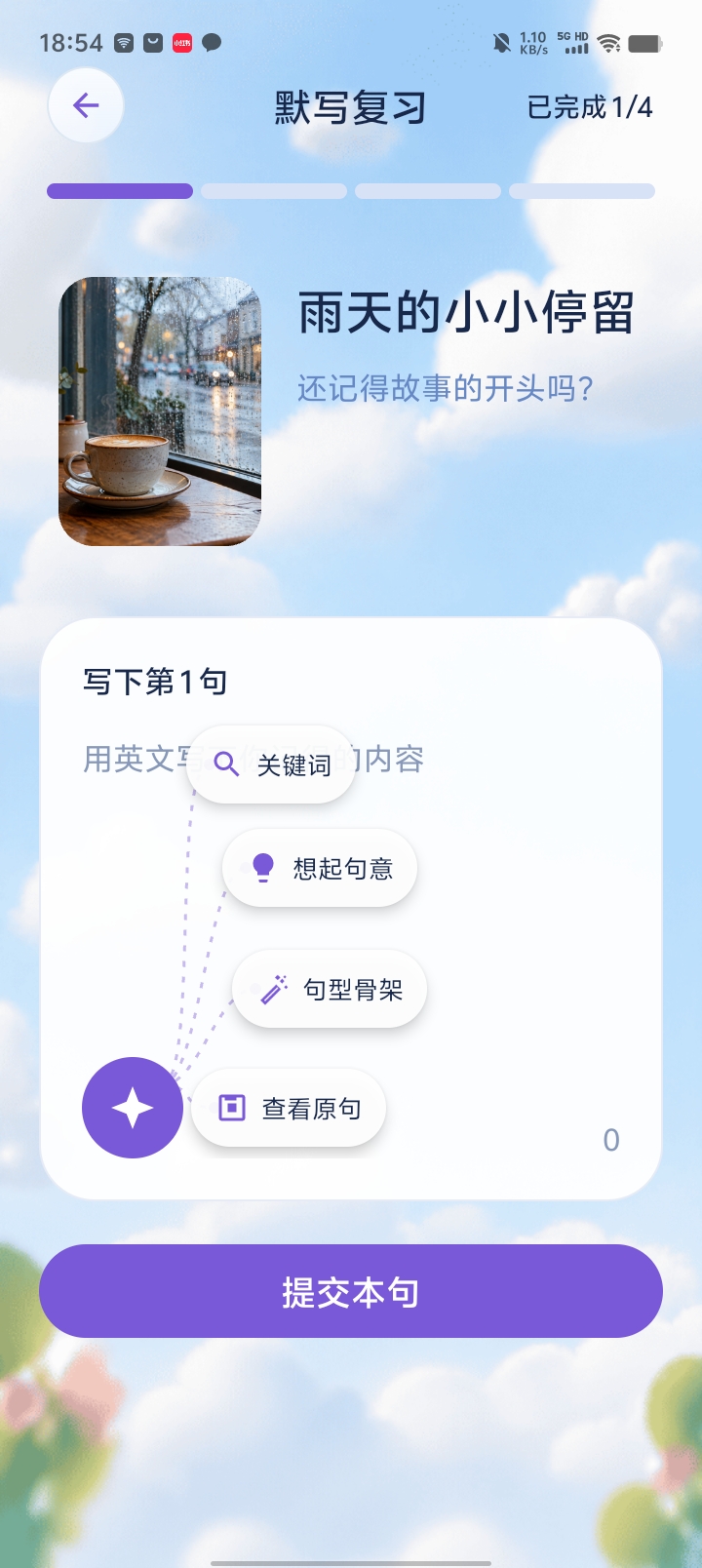
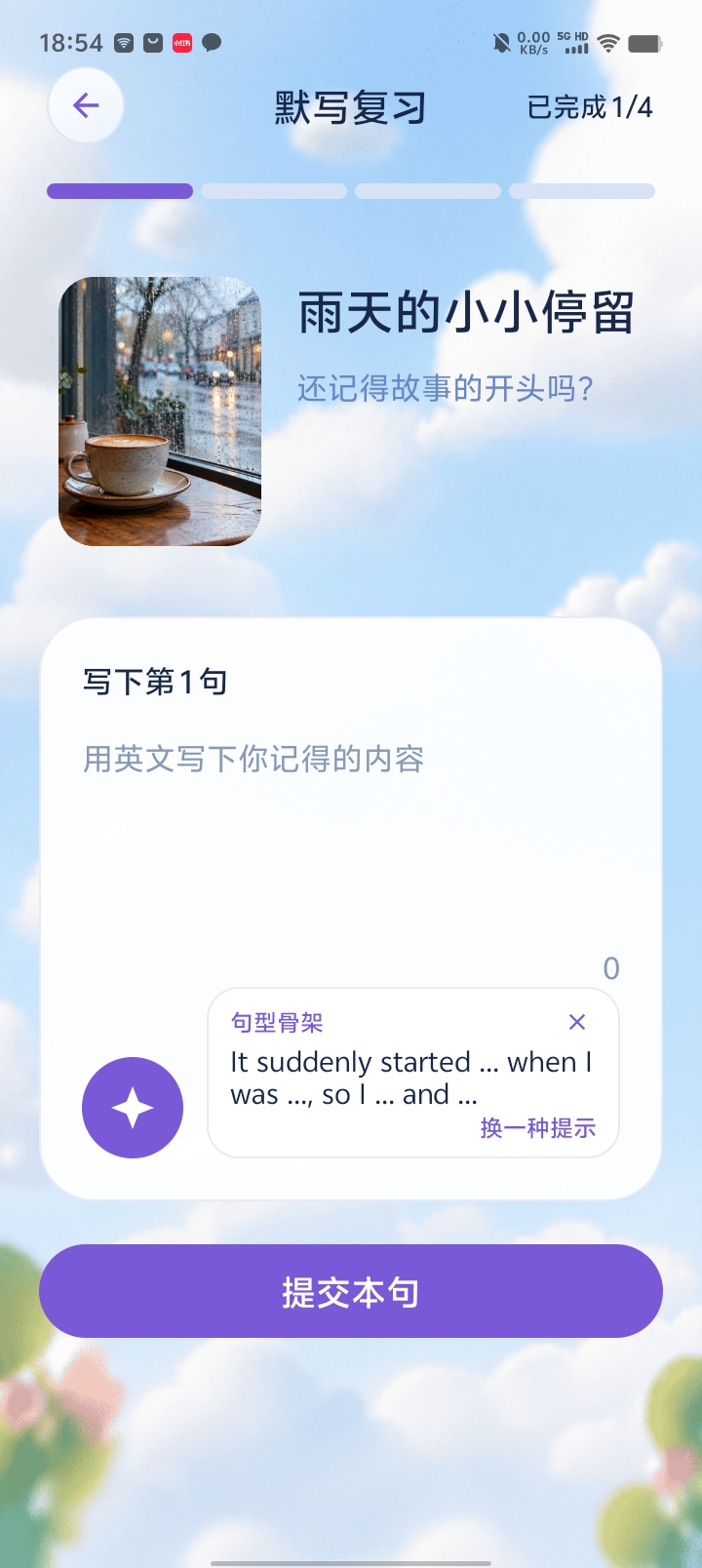
Choose 默写复习. The app divides the article into individual sentences. Look at the photo, recall the current English sentence and tap Submit sentence (提交本句).
Tap the help button at the bottom left for keywords (关键词), meaning (想起句意), sentence structure (句型骨架) or the original sentence (查看原句). This example chooses 句型骨架, showing It suddenly started … when I was …, so I … and … as a scaffold.
STEP 08
Review differences and find words to revisit
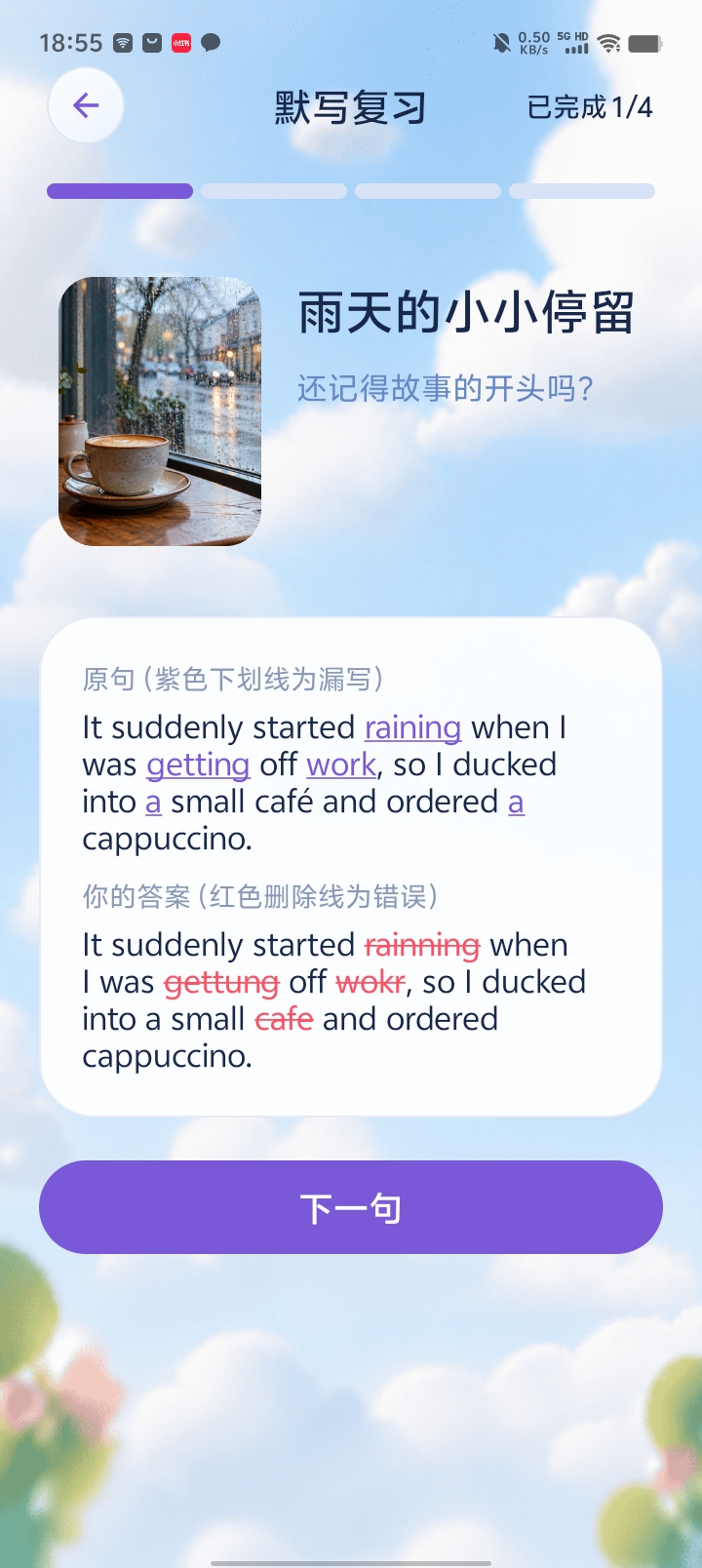
After submission, compare your answer with the original. In the screenshot, purple underlining marks corresponding missing content in the original, while red strikethrough marks errors in your answer. Tap Next sentence (下一句) to continue.
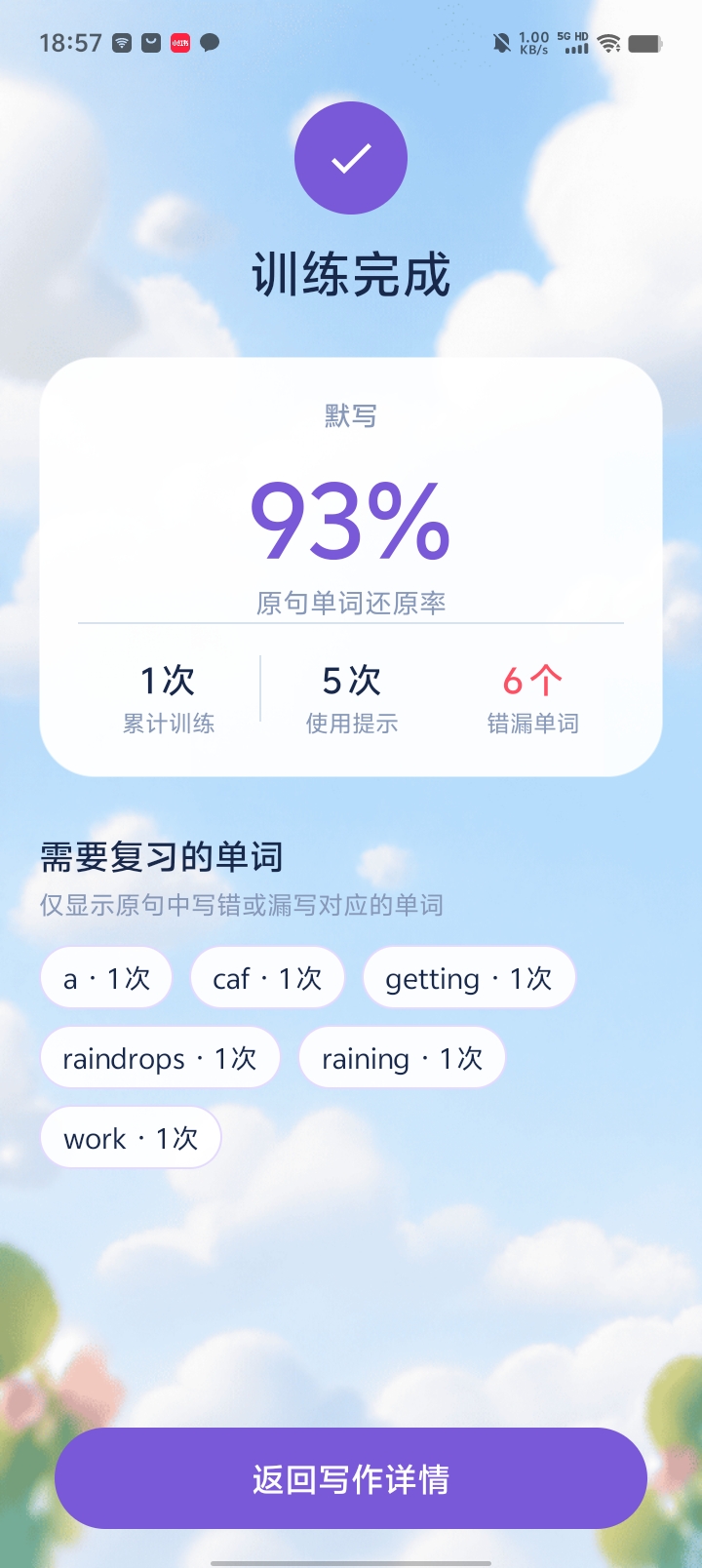
After all sentences, the summary shows the original-word restoration rate, training count, hints used and incorrect or missing words, followed by words to review. The displayed 93% is this session’s restoration rate; use it together with the word list to plan your next review.
STEP 09
Listen, type the sentence and check feedback
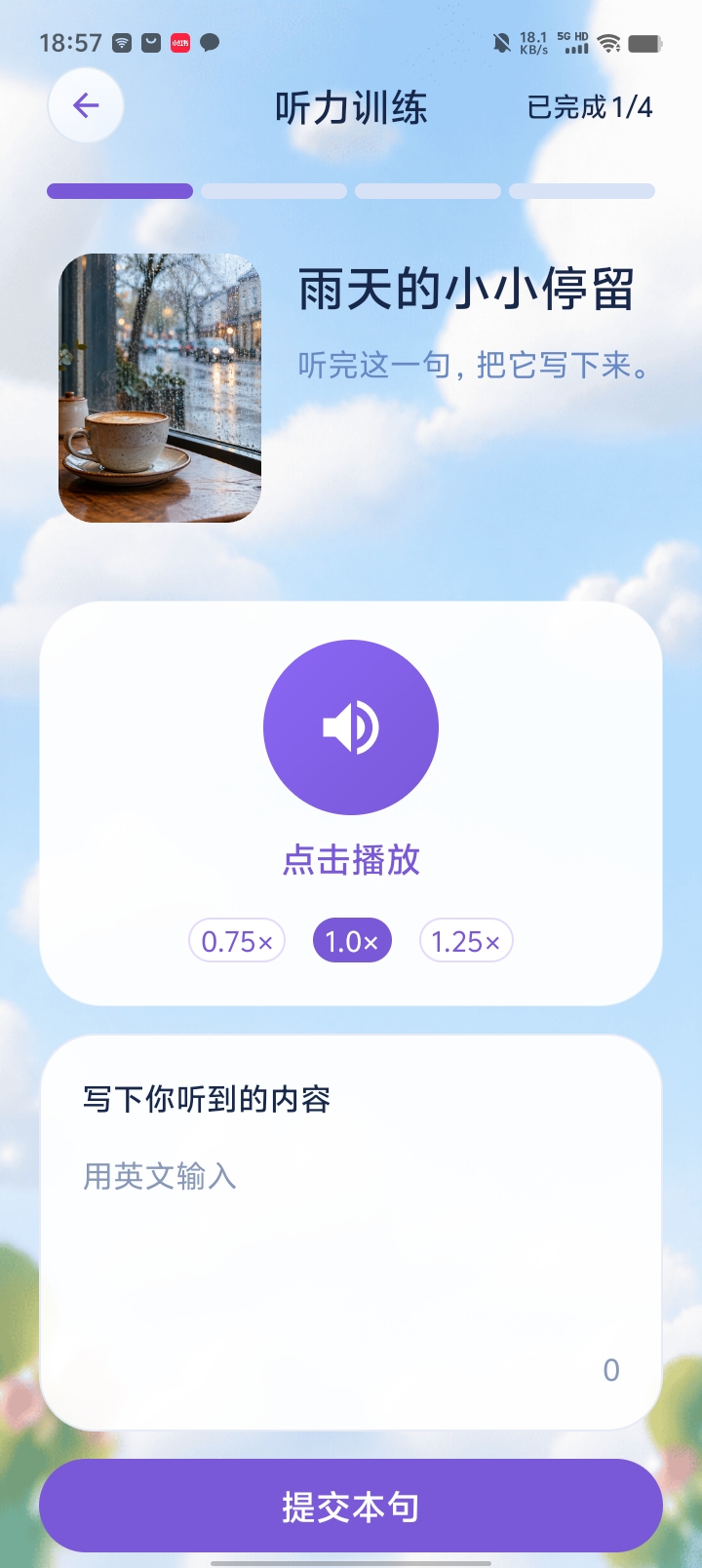
Choose Listening (听力训练) in the story details. Play the current sentence, type what you hear and tap Submit sentence (提交本句). The screenshot offers 0.75×, 1.0× and 1.25× playback speeds.
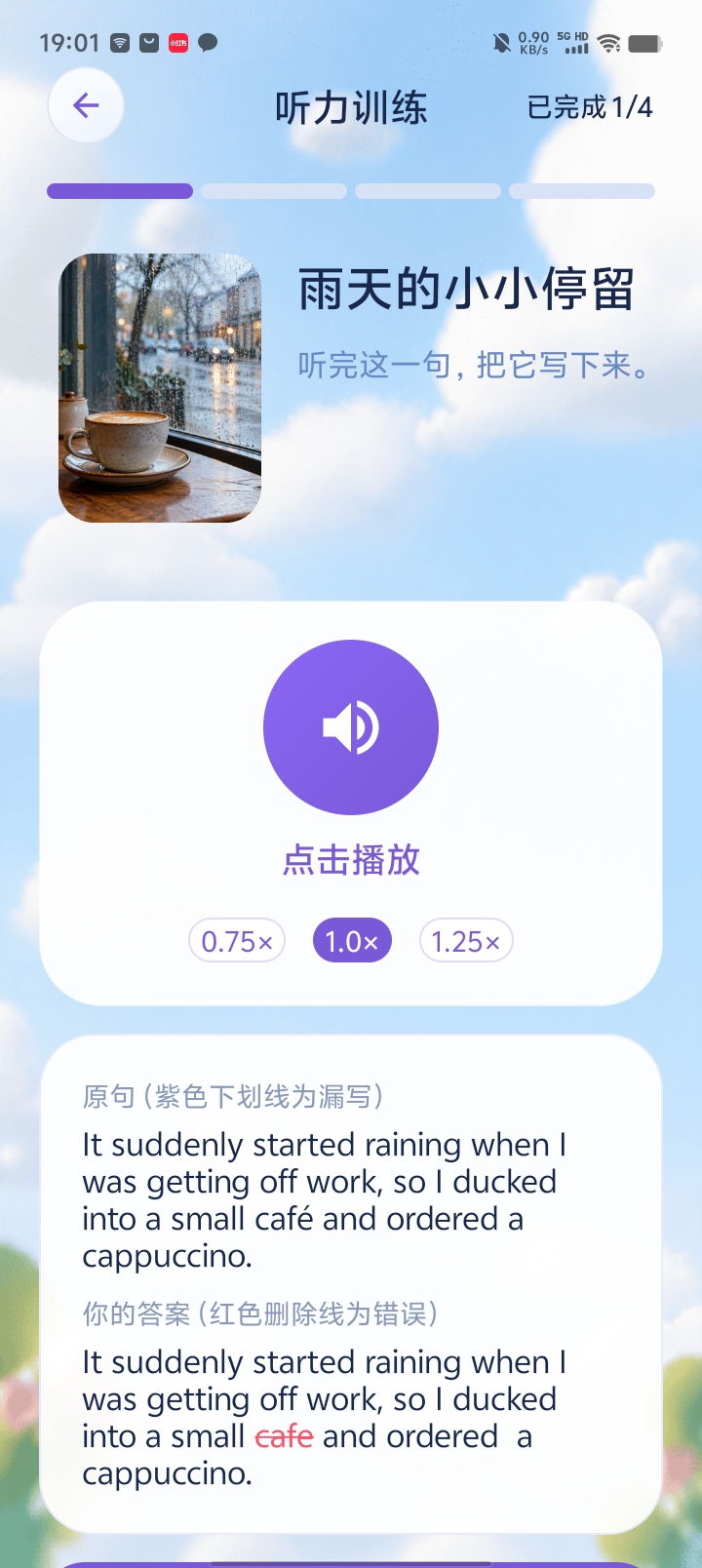
Compare the original and your answer, review the marked differences and continue. The content is still your own story; this time you are practicing the connection between its English sounds and spelling.
STEP 10
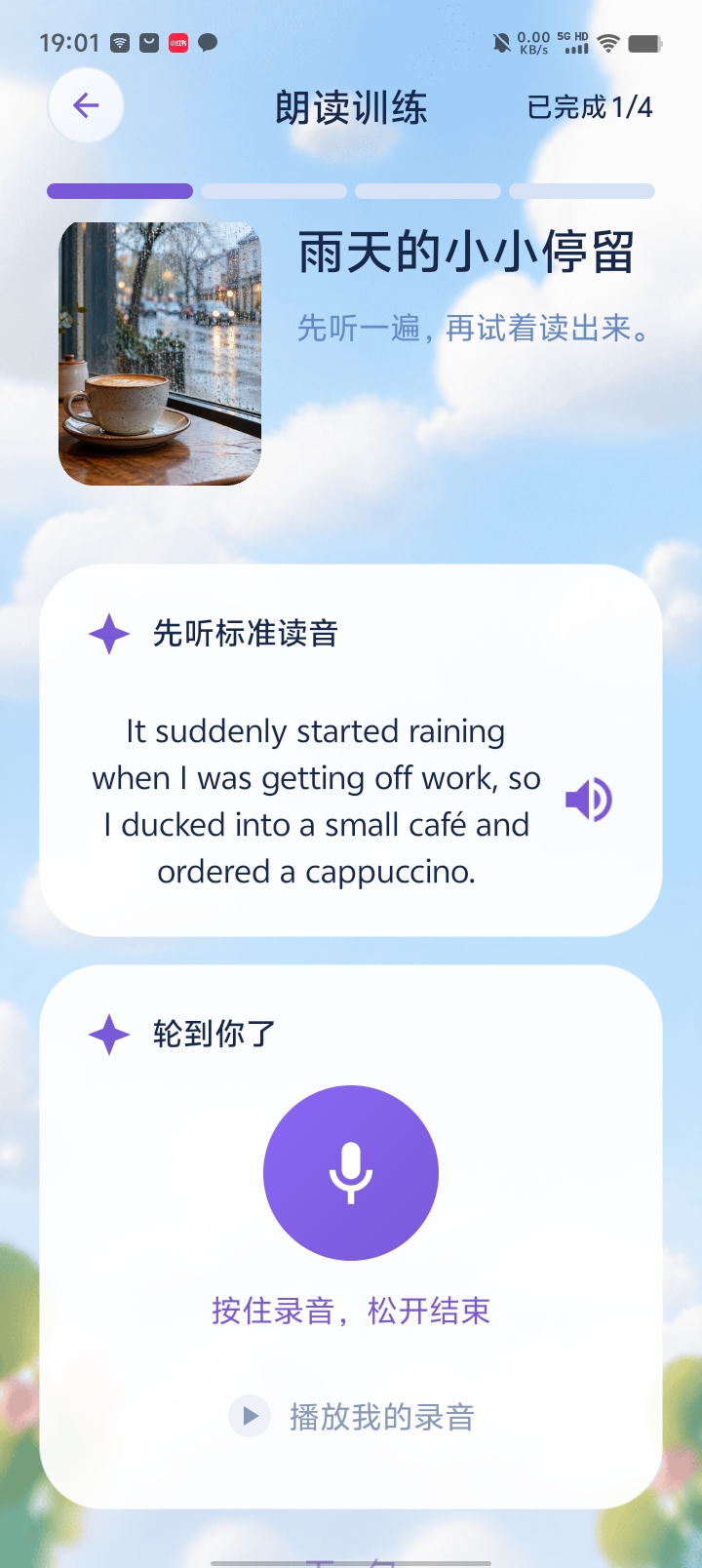
Listen to the reference, record and listen back
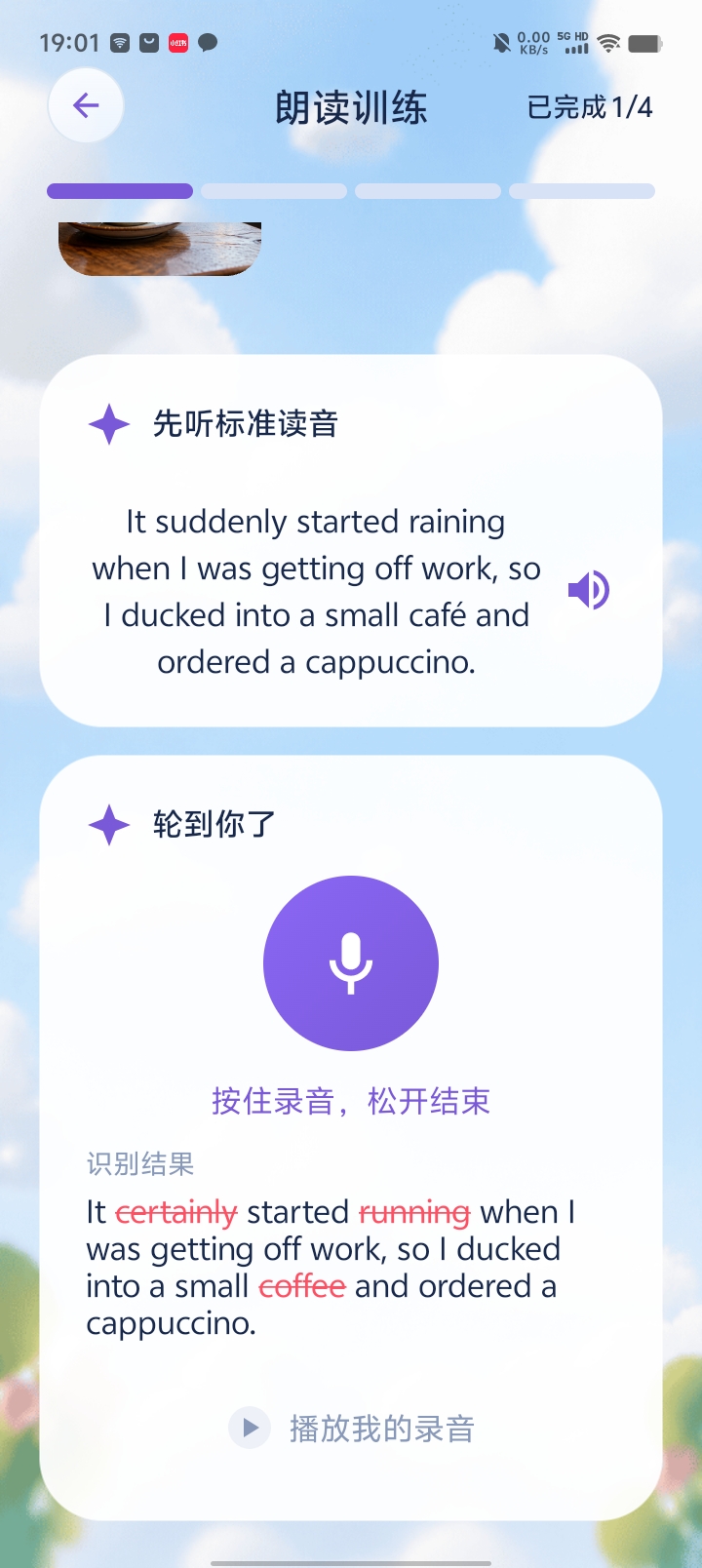
Choose Reading aloud (朗读训练). Play the reference audio first, then hold the microphone to record and release to finish. Tap Play my recording (播放我的录音) to listen back.
When ready, submit and review the recognized text and marked differences. Compare the reference with your own recording, then continue through the story’s sentences.
Return to your own story for another practice session
Go back to Photo writing (图文写作) in the scene-library folder, find the saved story and open its details to train again. Start with an experience you want to express, finish the text and try one training activity.